Signing In
The Price Transparency Explorer uses your organization's Gigasheet identity for authentication. Navigate to the application URL and click Sign In. You will be redirected to the Gigasheet login page. Once authenticated, you are returned to the Explorer automatically.
Note: Access requires a Price Transparency license assigned to your account. If you see an "Insufficient Permissions" message after signing in, contact Gigasheet to ensure a license has been assigned to your account.
Connecting Your Data Source
Before any data appears on the map, you must connect at least one Gigasheet sheet containing price transparency data. Navigate to Settings (the gear icon in the top-right corner) and follow these steps:
- Under Data Sources, click Add Sheet.
- Click the folder icon to browse your Gigasheet library and select the sheet containing your price transparency data.
- Assign the sheet to a state (e.g., "Tennessee"). If your sheet covers multiple states, select "All States."
- Click Save. The Explorer will automatically validate the connection and, if successful, navigate you to the Map View for that state.
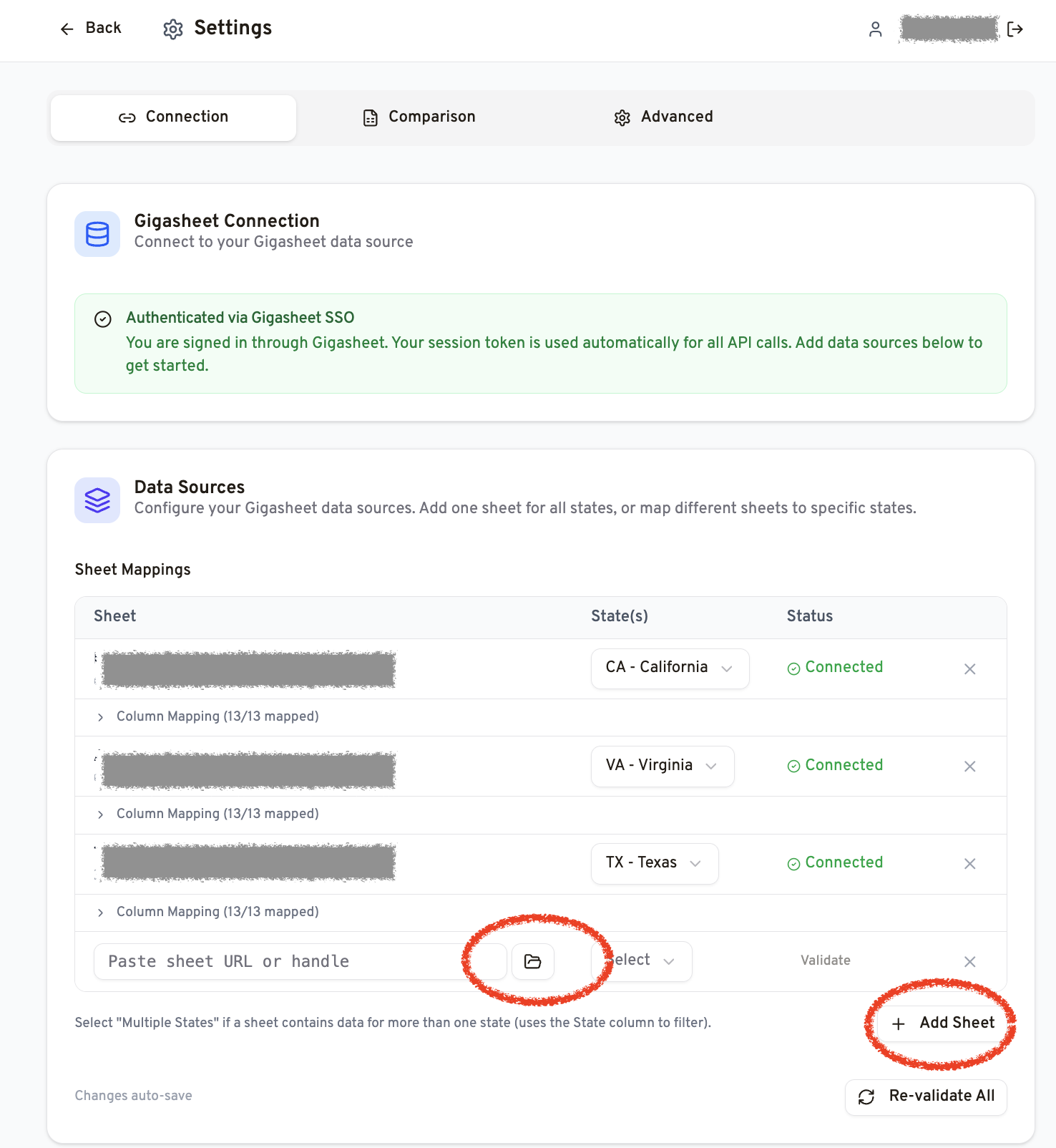
You can add multiple sheets (typically one per state) based on the data your organization has licensed.
Column Mapping
The Explorer automatically detects which columns in your sheet correspond to fields like NPI, billing code, payer, price, ZIP code, and specialty. If auto-detection does not produce correct results, you can manually map columns in the Settings → Data Sources section.
| Field | Description |
|---|---|
| NPI | National Provider Identifier (10-digit number) |
| Provider Name | Name of the billing provider or organization |
| Billing Code | CPT, HCPCS, or DRG code for the service |
| Payer | Insurance company or plan name |
| Negotiated Rate | The dollar amount negotiated between payer and provider |
| ZIP Code | Provider's service location ZIP code |
| Specialty / Taxonomy | Provider specialty taxonomy code |
| Place of Service | CMS place of service code (e.g., 22 = Outpatient Hospital) |
| Smart Rate | Optional flag indicating a "smart" or preferred rate in your dataset |
| Medicare % | Optional column expressing the rate as a percentage of the Medicare fee schedule |
Was this article helpful?
That’s Great!
Thank you for your feedback
Sorry! We couldn't be helpful
Thank you for your feedback
Feedback sent
We appreciate your effort and will try to fix the article