The Filter Panel
The filter panel on the left side of the Map View controls which rates are included in the map query. Filters must be applied by clicking Apply Filters; they do not update the map automatically.
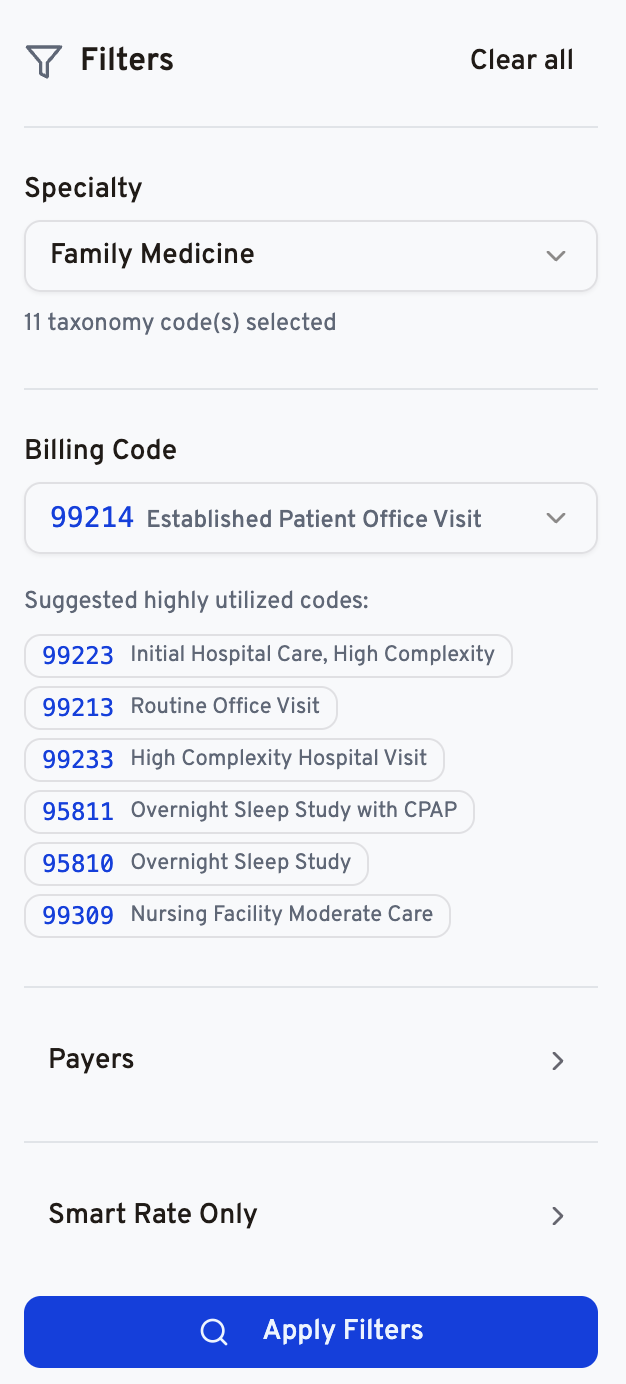
| Filter | Description |
|---|---|
| Specialty | Narrows results to providers in a specific specialty group (e.g., "Internal Medicine," "Surgery") |
| Billing Code | Filters to a single CPT or HCPCS procedure code. Type a code or description to search. |
| Payers | Limits results to one or more specific insurance companies or plans. Multi-select is supported. |
| Smart Rate Only | When enabled, only rows flagged as "smart rates" in your dataset are included. Enabled by default. |
Suggested Codes
When a specialty is selected, the filter panel displays up to six frequently billed codes for that specialty. Clicking a suggested code populates the Billing Code filter instantly.
Filter Persistence
Filters are persisted in your browser's local storage, so they are remembered between sessions. When you return to the Explorer, your last-used filters are pre-populated.
Applying Filters
Click Apply Filters to send the query to your Gigasheet data source. The map will update with markers for all matching ZIP codes. A loading indicator shows query progress; the first query for a new filter combination may take 10–30 seconds depending on dataset size.
Related: Map View: Overview and Price Markers · Map View: ZIP Code Detail and Rate Data Table · How Do I Speed Up Queries on National Price Transparency Data?
Was this article helpful?
That’s Great!
Thank you for your feedback
Sorry! We couldn't be helpful
Thank you for your feedback
Feedback sent
We appreciate your effort and will try to fix the article